Banglarbhumi e-Porcha Download 2026: Signed RoR via GRN Search
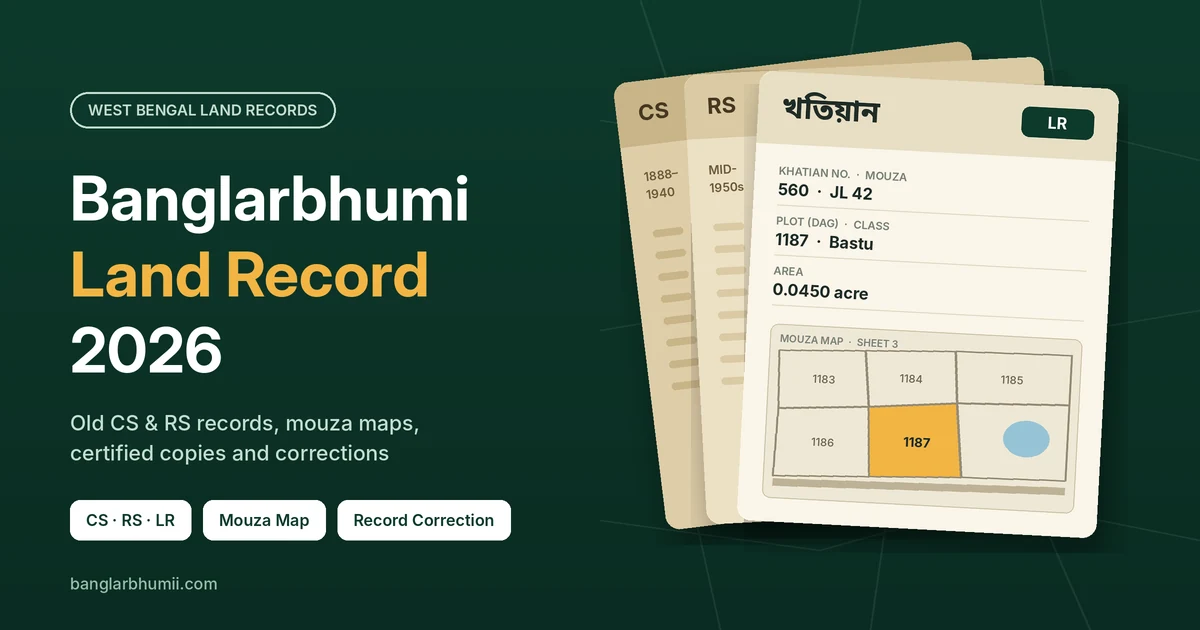
e-Porcha (ই-পর্চা) is the digitally signed copy of your Record of Rights (RoR), issued as a PDF through banglarbhumi.gov.in. You request it under Citizen Services → Service Delivery, wait for your Block Land & Land Reforms Office (BL&LRO) to sign it, then download it with GRN Search using your GRN and Application Number. The online signed copy has been free since July 2026.
RoR, plot information or plot map?
Service Delivery offers three signed documents. All three follow the same request process; only the number you enter changes.
| Document | What it shows | You enter |
|---|---|---|
| RoR (e-Porcha) | The whole khatian: every plot in the holding, with owners and shares | Khatian number |
| Plot Information | One plot: its owners, class and area | Plot (dag) number |
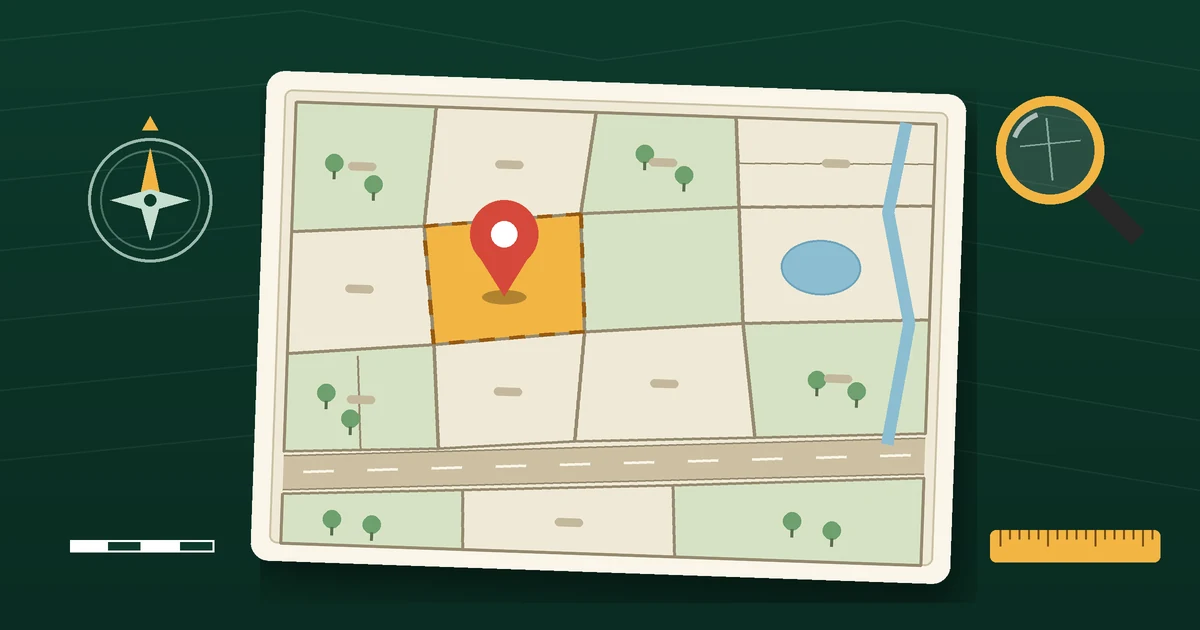
| Plot Map | The boundary sketch of one plot | Plot (dag) number |
Request the RoR when a bank, buyer or court asks for the “porcha” or “khatian copy”. Request Plot Information when only one dag matters, such as a sale of part of a holding.
Before you request
- Sign in first. The request runs inside your citizen account.
- Have the location and number ready: district, block, mouza, and the khatian or plot number. If your deed only gives an old RS dag, convert it to the LR number first.
- Check the owner name on Know Your Property. The signed copy shows the record exactly as it stands today. If you bought or inherited the land and your name isn’t there yet, finish mutation first. Requesting now only gets you a signed copy in the previous owner’s name.
How to request your e-Porcha
- Sign in at banglarbhumi.gov.in.
- Open Citizen Services → Service Delivery → RoR Request. For one plot, choose Plot Info Request or Plot Map Request instead.
- Select the district, block and mouza.
- Enter the khatian number for an RoR, or the plot number for plot information or a map.
- Click Calculate Fee. The application and authentication fees for an online signed copy are waived; a charge applies only to extras such as a posted paper copy.
- Submit, and save the receipt. It carries your Application Number and GRN, and you need both to download.
How to download it with GRN Search
The copy appears only after the BL&LRO signs it. Once it’s signed, the portal sends an SMS to the mobile number registered on your account.
- Sign in and open Citizen Services → Service Delivery → Request GRN Search (some screens label it simply GRN Search).
- Choose the request type for RoR, Plot Info or Plot Map.
- Enter the GRN and Application Number exactly as printed on your receipt, then the captcha.
- Click Download and save the signed PDF.
The download isn’t tied to the account that applied. Any citizen login can fetch the copy with the right GRN and Application Number, so a family member can download it for you.
Keep the original PDF file. A screenshot, a printout or a “print to PDF” copy loses the digital signature, and the signature is what gives the document its legal weight.
Need a paper copy by post?
Service Delivery also lets you order digitally signed certified copies of the RoR and maps for delivery to your address. If the option appears for your mouza, you confirm the address and pay the delivery and document charges. If it doesn’t appear, it isn’t available for that mouza or document, so download the PDF instead.
How to check the digital signature
Open the PDF in Adobe Acrobat Reader, which is free, and look at the signature bar at the top of the page or the Signature panel.
| What you see | What it means |
|---|---|
| Green tick | The signature is valid and the file hasn’t changed since signing |
| Yellow question mark (“validity unknown”) | Your computer doesn’t yet trust the signer’s certificate. The copy isn’t fake. |
| Red X | The file was altered after signing, or the signature is invalid. Download it again from the portal. |
To clear a yellow question mark, right-click the signature, open Show Signature Properties → Show Signer’s Certificate, add it to your trusted certificates from the Trust tab, then validate the signature again.
Browser PDF viewers and phone gallery apps usually don’t show signature status at all. Check in Acrobat Reader before you hand the file to a bank or lawyer.
Is the e-Porcha legally valid?
Yes. Section 5 of the Information Technology Act, 2000 says that where a law requires a document to be signed, a digital signature meets that requirement. Indian evidence law also presumes that a validly digitally signed record hasn’t been altered since it was signed.
Two limits matter in practice:
- It’s only as current as the record. If a mutation is pending, the e-Porcha still shows the previous owner, and it remains a valid copy of an outdated record.
- The validity sits in the file. Share or submit the original PDF. If an office insists on paper, use the postal option or ask your BL&LRO for a certified hard copy.
If the download doesn’t work
| Problem | Likely reason | What to do |
|---|---|---|
| No Download button | Not signed yet | Wait for the SMS, then search again |
| Search finds nothing | Wrong request type, or the GRN and Application Number swapped | Copy both numbers exactly from the receipt and pick the RoR / Plot Info / Plot Map type |
| Receipt lost | — | Reprint it from Application/Receipt Reprint under Citizen Services |
| Owner name is outdated | Mutation not complete | Finish mutation, then request a fresh copy |
| No SMS after a long wait | Signing backlog at the block office | Raise a Public Grievance quoting the Application Number, or ask the BL&LRO |
Not the Bangladesh e-Porcha
Searching “e-porcha” often brings up eporcha.gov.bd and dlrms.land.gov.bd. Those are Bangladesh’s land record portals, run by its Ministry of Land, for RS and BS khatians in Bangladesh. For land in West Bengal, India, the only official source is banglarbhumi.gov.in.